Table of Contents:
Accessing the Customer Health Scorecard
Completing the Customer Health Score
Completing the Analysis Section
Updating Percent Complete and Monthly Progress
Completing the Outcome and Marking the Initiative Complete
Locating Completed Initiatives
Managing Agreement Information
Adding or Updating the Gold Sheet Link
Objective:
Implement ClearPoint as a single, consistent view of account health for our Top 48 Health Systems — representing nearly half of weekly company revenue — to proactively manage performance, relationships, and risk. Through a standardized Customer Health Scorecard, monthly analysis, and defined initiatives, Service Owners will turn insights into action to protect revenue, strengthen relationships, and drive sustainable growth
Portal Link:
https://app.clearpointstrategy.com/#/login
Accessing the Customer Health Scorecard
Complete the following steps to access and update your assigned Health System:
- Log into ClearPoint.
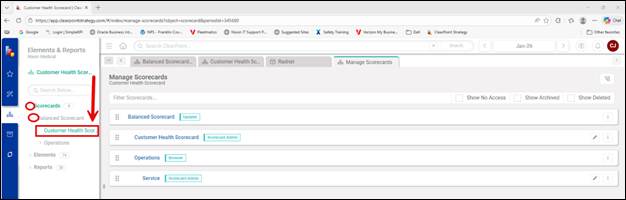
- In the left navigation pane, click the dropdown arrow (>) next to Scorecards.
- Click the dropdown arrow (>) next to Balanced Scorecard.
- Click Customer Health Scorecard.
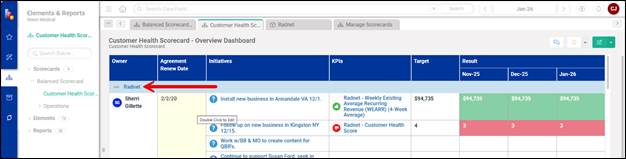
- Scroll down and click on your assigned Health System.
Completing the Customer Health Score
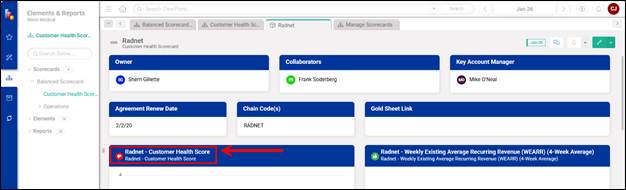
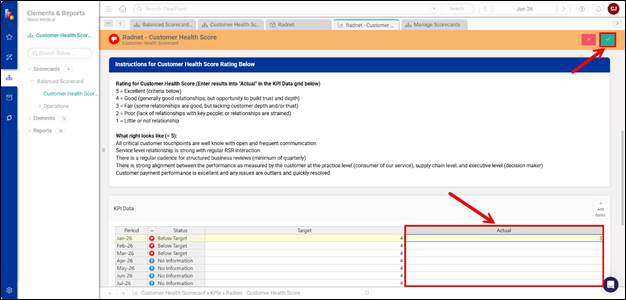
- Click on Health System - Customer Health Score in the royal blue header to open the metric.
- Using the Instructions for Customer Health Score Rating, enter the customer health score in the KPI Data section at the bottom under the Actual column.
- Click Save, then close/exit out of that tab.
Completing the Analysis Section
- Back on the main Health System page, scroll to the Analysis section and double-click the Analysis (bright blue) header.
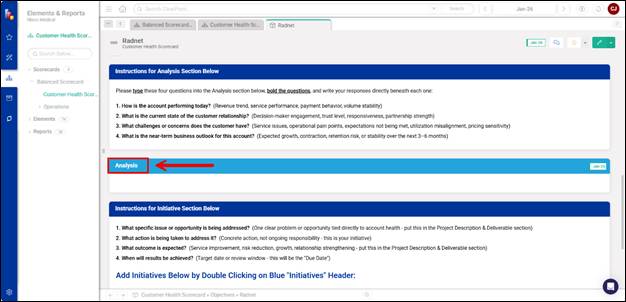
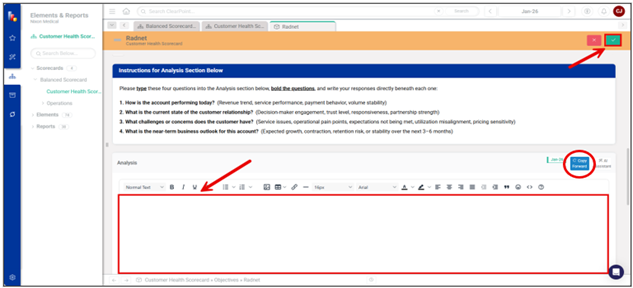
- Type and answer the four Analysis questions using the Instructions for Analysis Section, then click Save.
Note: You will only have to type these questions one time. After that, you can utilize the “Copy Forward” option (circled below) and just update the answers to the questions.
Adding a New Initiative
- Back on the main Health System page, scroll to the Initiatives section and double-click the Initiatives (royal blue) header.
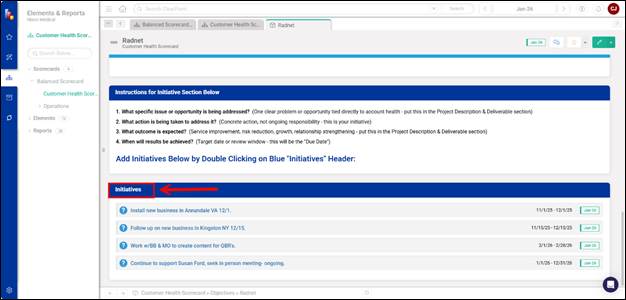
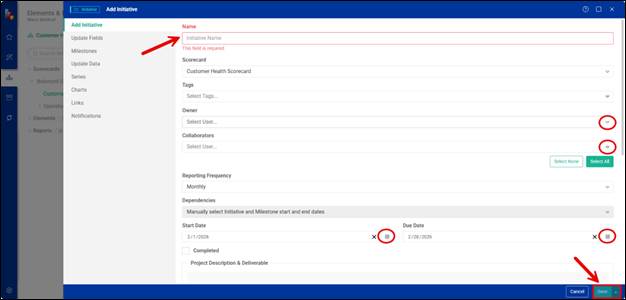
- Click Add Initiative.

Adding Initiative Details
- Using the Instructions for Initiative Section, give the initiative a detailed name and complete the Owner, Collaborators, and the Start & Due Dates sections.
Note: You do not need to complete the Project Description & Deliverable and Outcome of Initiative in this section.
- Click Save
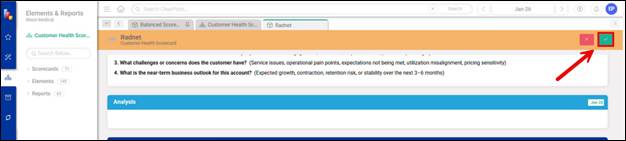
- Click Save again on the main Health System screen as well
Updating Percent Complete and Monthly Progress
- Single click the new Initiative you just added to open it

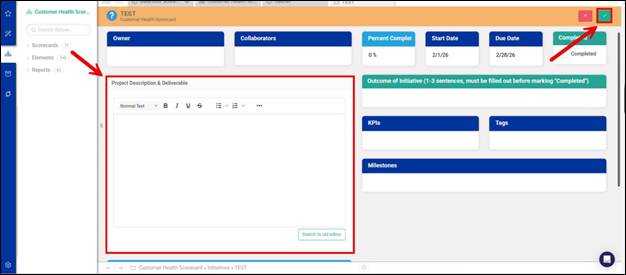
- Double-click the Project Description & Deliverable (Review the Instructions prior and use as a guide from the main Health System screen — do not format as Q&A).
- Click Save
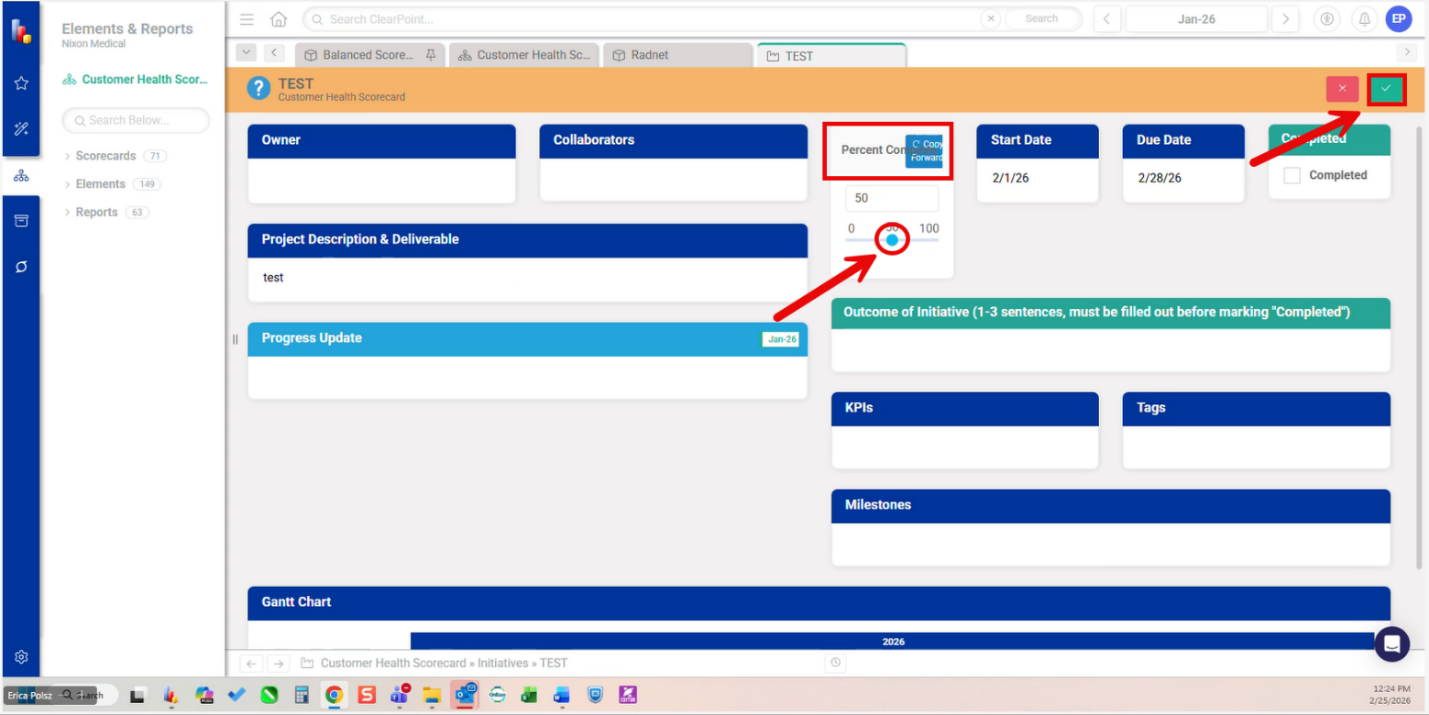
- Continue updating the Progress Update and the Percent Complete each month until the project reaches 100% completion.
Note: To update the Percent Complete, double-click the header and slide the indicator to the appropriate percentage. The status indicator will reflect whether the project is on track or behind schedule based on the current pace relative to the completion date.
- Click Save.
Completing the Outcome and Marking the Initiative Complete
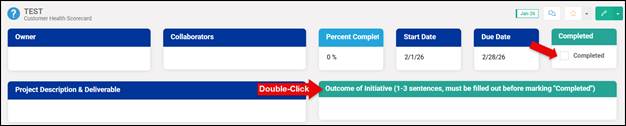
- Once the Percent Complete reaches 100%, complete the Outcome of Initiative section (1–3 sentences required). After entering the outcome, click Save, then check the Completed box to mark the initiative as complete. The initiative will no longer appear in the list of active initiatives.
Locating Completed Initiatives
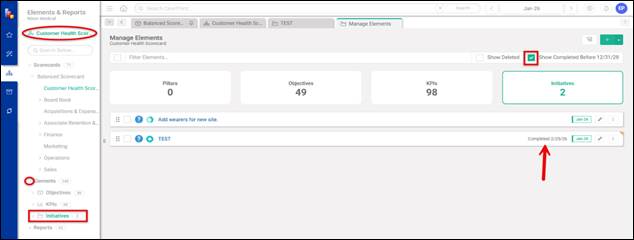
- To locate a completed initiative in the future, first confirm you are in the Customer Health Scorecard. Navigate to Elements, then click Initiatives. Check the box next to Show Completed Before 12/31/18 to display previously completed initiatives. Completed initiatives will be labeled “Completed” along with the completion date.
Managing Agreement Information
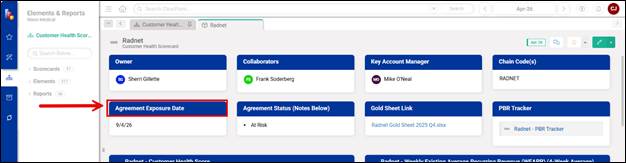
- Double-click on Agreement Exposure Date in the royal blue header to open the metric.
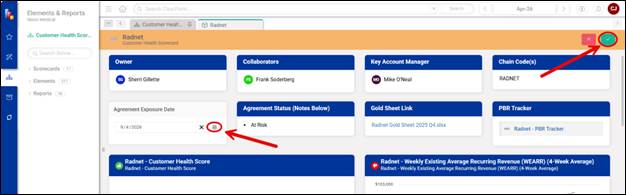
- Click on the Calendar icon, select the exposure date, and click Save
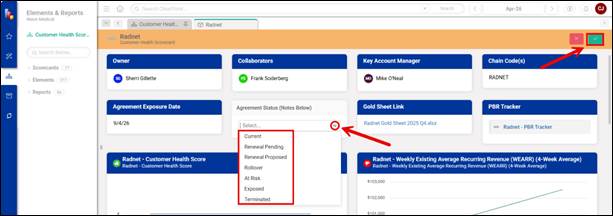
- Double-click on Agreement Status in the royal blue header to change or update the status.
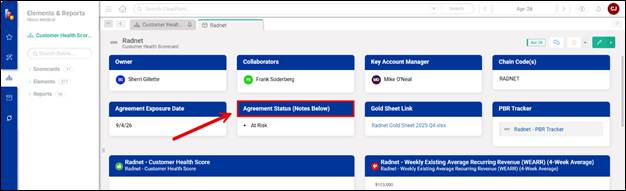
- Click on the dropdown arrow, select the agreement status, and click Save
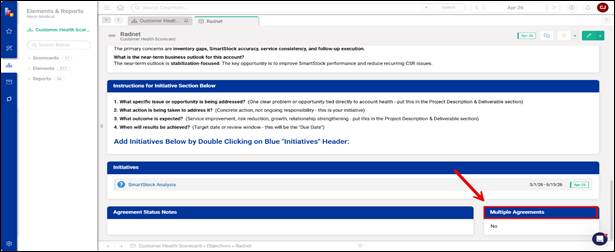
- Scroll down to the bottom of the page and double-click on Multiple Agreements in the royal blue header, if this applies to your Health System.
- Click Yes if the health system has more than one agreement and click Save
(e.g., customer-specific agreements or separate agreements for each chain code).
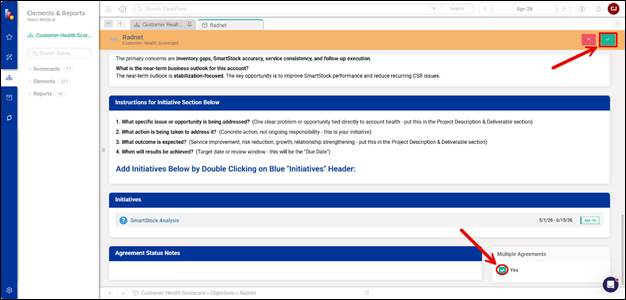
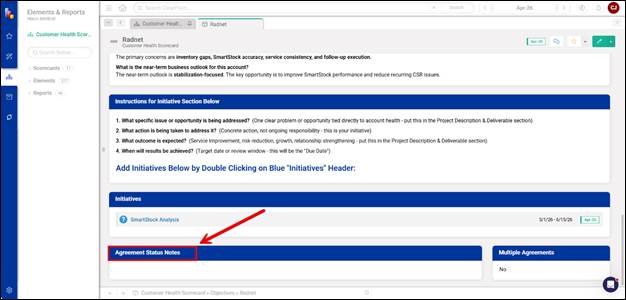
- Double-click the Agreement Status Notes field and enter details related to the status of the agreements, such as exposure dates for each agreement, the current status of renegotiations with the health system, or any other relevant information pertaining to the agreement status. Once complete, click Save.
Updating the PBR Tracker
- Click the PBR Tracker link within the PBR Tracker pod.
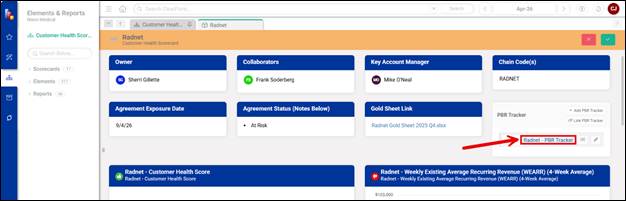
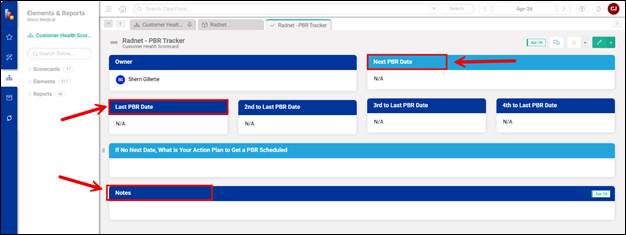
- Enter all required information by double-clicking each field header, then click Save once all information has been completed.
Adding or Updating the Gold Sheet Link
- In Microsoft Teams, expand Teams and channels. Expand Key Account Gold Sheets, then click Gold Sheet. Click the Shared tab. Click on Gold Sheet folder to open it. Then open the appropriate KAM folder.
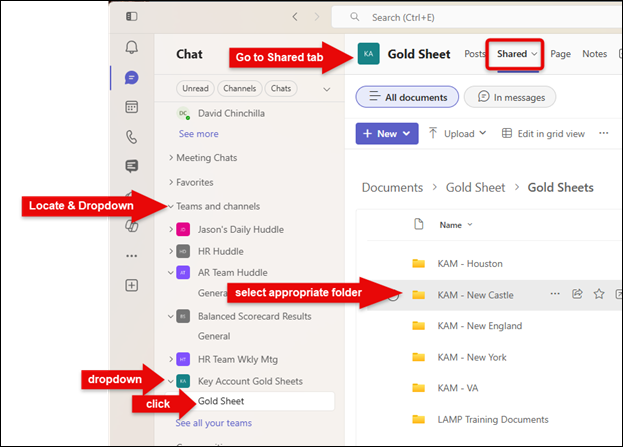
- Open the appropriate Health System folder.
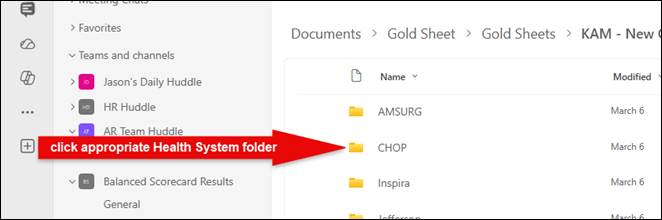
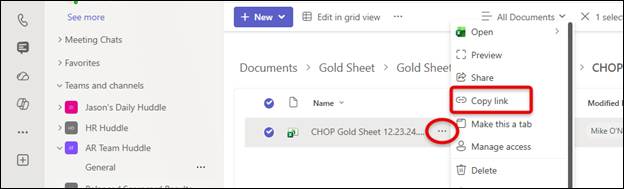
- Locate the Gold Sheet workbook, click the three dots (...) next to the file, and select Copy
link.
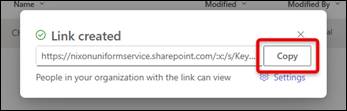
- Click Copy to copy the link to your clipboard, then close the confirmation window.
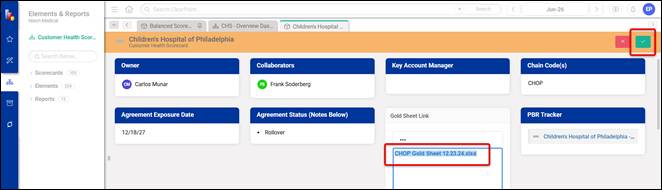
- Return to the appropriate Customer Health Scorecard in ClearPoint. Double-click the Gold Sheet Link field header.
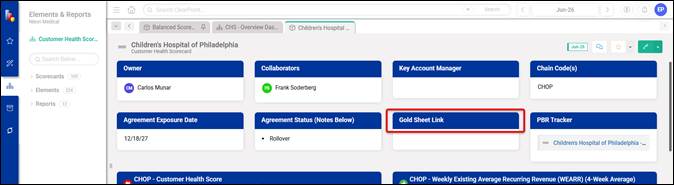
- Paste (ctrl + v) the copied link into the field and click Save.
Accessing the Gold Sheet
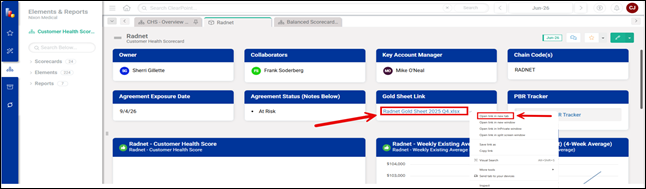
- Right click the health system Gold Sheet link within the Gold Sheet Link pod and select Open link in new tab.
- The Gold Sheet is an account-planning workbook used to summarize current account performance, understand the customer’s organization and relationships, identify growth opportunities and risks, and document the actions needed to move the account forward.
Workbook tabs
- Scorecard Instructions – Explains what information is required for the account scorecard and identifies the reports or sources used to obtain each metric.
- Scorecard – Provides a high-level view of the account’s current performance across growth, account management, customer experience, and financial measures.
- Gold Sheet Overview – Provides an overview of the Gold Sheet process and serves as a reference for how the account-planning information should be organized and reviewed.
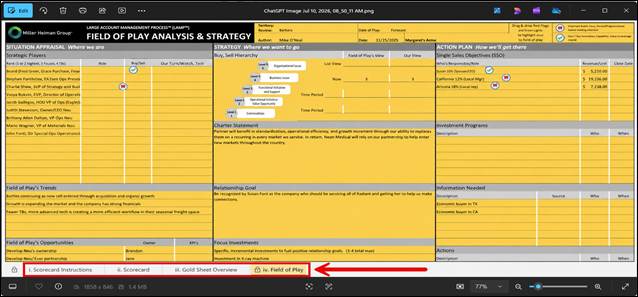
- Field of Play – Documents the customer’s key decision-makers, relationship strength, business trends, opportunities, risks, strategic goals, revenue potential, and planned actions.