


NM1 Chat is Nixon Medical's AI assistant for everyday work. You can use it to ask questions, brainstorm ideas, draft and revise content, summarize documents, compare files, extract action items, and research current information.
This guide explains the main NM1 Chat features from an end-user perspective. No technical experience is required.
Important: NM1 Chat can make mistakes. Review its answers, calculations, summaries, and drafted content before relying on or sharing them.
Opening NM1 Chat
- Sign in to NM1 with your username and password.
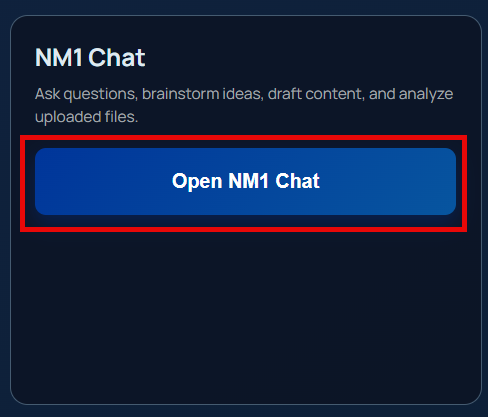
- On the Nixon Medical Dashboard, select Open NM1 Chat.
- To move between NM1 pages later, select the menu icon (☰) in the upper-right corner.
- Select Logout or Sign out when you are finished, especially on a shared device.
If you forget your password, select Forgot password? on the sign-in page and follow the instructions to receive a verification code.
A Quick Tour of the Interface
NM1 Chat has four main areas:
- Conversations panel — Displays your saved chats. Use it to start, find, pin, rename, organize, or delete conversations.
- Message area — Shows your messages and NM1 Chat's responses.
- Message box — Type or dictate what you want NM1 Chat to do. You can also attach files here.
- Top toolbar — Opens the Prompt Builder, Settings, navigation menu, and sign-out controls.
Controls at a glance:
| Control | What it does |
|---|---|
| New Chat | Starts a separate conversation |
| Paperclip | Attaches one or more files |
| Microphone | Converts your speech into editable text |
| Send | Submits your message and any queued attachments |
| Prompt Builder | Turns a rough request into a clearer, more detailed prompt |
| Settings | Changes the theme, font, and text size |
On a smaller screen, select ☰ Conversations to open your conversation history.
Starting Your First Conversation
- Select New Chat.
- Click in the Message NM1 Chat... box.
- Describe what you need in plain language.
- Select Send, or press Enter.
- Continue in the same conversation to ask follow-up questions or refine the result.
Press Shift+Enter when you want a new line without sending the message.
The welcome screen also offers starter choices such as Summarize a document, Compare multiple files, Extract action items or risks, and Brainstorm ideas or draft content. Selecting one places a sample request in the message box so you can review or edit it before sending.
Writing a Useful Prompt
A prompt is simply the instruction or question you give NM1 Chat. Strong prompts usually include:
- Goal — What do you want NM1 Chat to do?
- Context — What background information does it need?
- Audience — Who will read or use the result?
- Format — Should the answer be an email, summary, table, checklist, talking points, or something else?
- Constraints — Mention the desired tone, length, deadline, or facts that must be included.
Example:
"Draft a friendly follow-up email to a customer after today's meeting. Thank them for their time, recap the three attached action items, and end with a request to confirm the due dates. Keep it under 200 words."
You do not need to make the first prompt perfect. Ask follow-up questions such as "Make this shorter," "Turn this into bullet points," or "Explain that in simpler language." Start a new chat when you move to an unrelated task so the earlier discussion does not influence the new one.
Using the Prompt Builder
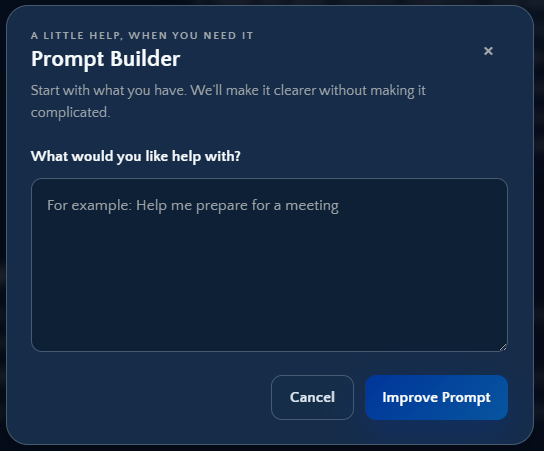
Use Prompt Builder when you know roughly what you want but are unsure how to phrase it. It helps add useful detail and does not send anything automatically.
- Select Prompt Builder in the top toolbar.
- In the "What would you like help with?" field, enter your rough request — for example: "Help me prepare for a meeting." If you already typed something in the main message box, NM1 uses that text as the starting draft.
- Select Improve Prompt.
- Answer any short clarification question NM1 asks, then select Continue. It may ask another question if more detail would improve the request.
- Review the improved prompt. You can edit it directly before using it.
- Select Insert into Chat. The prompt is placed in the main message box.
- Review it one more time, add any files you want NM1 to use, and select Send.
Select Start Over to discard the Prompt Builder draft and begin again. Select Cancel, the X, or press Escape to close the builder without inserting the prompt.
When Prompt Builder Is Most Helpful
Prompt Builder works well for broad requests such as:
- "Write an email."
- "Summarize this."
- "Help with a presentation."
- "Analyze these numbers."
Its questions help identify missing details like audience, purpose, tone, format, or source material. If your request is already specific, you can type it directly in the message box instead.
Using the Microphone for Dictation
The microphone icon beside the message box is a speech-to-text tool. It places your spoken words into the prompt so you can edit them before sending. It does not send your message or create a voice recording.
- Click in the message box where you want the dictated text to appear.
- Select the microphone icon.
- If your browser asks for microphone access, select Allow.
- Speak clearly. The message box displays the recognized text as you talk.
- Select the microphone again when you are finished.
- Review and correct the text.
- Select Send when the message is ready.
Dictation uses your browser's configured language and is supported in current versions of Microsoft Edge and Google Chrome. If the microphone is disabled, try one of those browsers. If permission was previously denied, allow microphone access in the browser's site settings and try again. You can always type in the message box if dictation is unavailable.

Working with Files
NM1 Chat can summarize, compare, and answer questions about supported files.
- Select the paperclip icon.
- Choose one or more files.
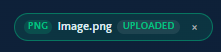
- Confirm that each file appears in the attachment tray above the message box. Select the X on a file chip if you attached it by mistake.
- Enter an instruction that tells NM1 what to do with the files.
- Select Send. Files are uploaded when the message is sent.
You can also paste a copied image directly into NM1 Chat. Supported file types include PDF, Word (.docx), Excel (.xls and .xlsx), PowerPoint (.pptx), CSV, Markdown, plain text, PNG, and JPEG. All attachments in the active conversation can total up to 25 MB combined.
Be specific about how NM1 should use the attachment. For example:
- "Summarize this document in five bullets for a manager."
- "Compare these two files and list the differences in a table."
- "Extract every action item, owner, and due date."
- "Review this spreadsheet and identify unusual changes or missing values."
- "Read the text in this image and organize it into a checklist."
An Uploaded chip beneath the response confirms which file was used with that request. Uploaded files are retained for a limited period. If NM1 warns that an attachment is more than 30 days old, attach the file again before asking NM1 to use it.

Understanding and Reusing a Response
NM1 Chat remembers the messages within the current conversation. Ask follow-up questions to change the tone, add detail, correct an assumption, or request a different format.
Use the clipboard icon on a message to copy its contents. When a response contains a code block, select Copy on that block to copy only the code.
Some answers show additional indicators:
- Web Search Used — NM1 searched current external information for that response.
- Knowledge Base Used — NM1 used Nixon Medical support knowledge.
- Sources — Opens the titles and links used to support the answer.
- Uploaded — Identifies a file submitted with that request.
Open Sources and review the supporting pages when accuracy or timeliness matters. Even when sources are shown, check important facts before using the answer.


Finding and Organizing Conversations
Conversations are saved automatically and are available when you sign in on another device.
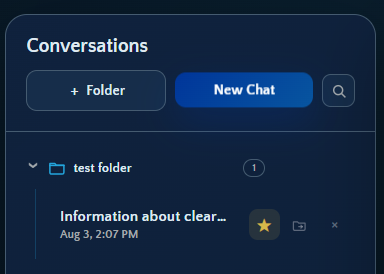
- Open a chat — Select its title in the Conversations panel.
- Search — Select the magnifying-glass icon and search conversation or folder names.
- Pin — Select the star beside a conversation to keep it prominent. Select it again to unpin.
- Rename — Double-click a conversation title, enter the new name, and select the check mark.
- Create a folder — Select + Folder, name it, and choose the conversations to include.
- Move a chat — Select the folder/move icon beside a conversation and choose its destination.
- Manage a folder — Use the controls beside the folder to add or remove chats, rename it, expand or collapse it, or delete it.
- Delete a chat — Select the X beside the conversation and confirm the deletion.
On desktop, drag the divider beside the Conversations panel to change its width. Double-click the divider to return it to the default width.
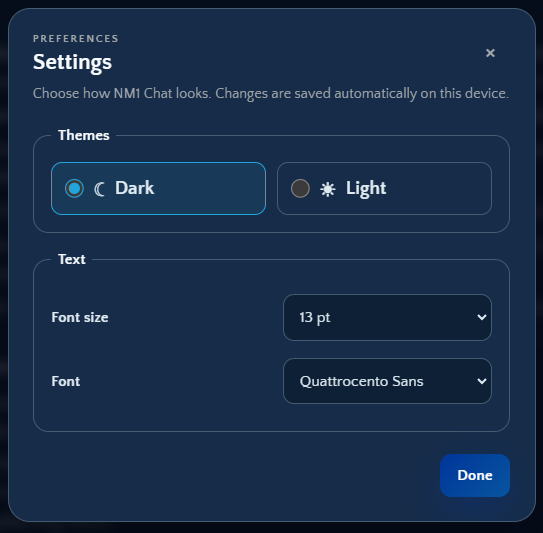
Adjusting Appearance Settings
Select Settings in the top toolbar to personalize NM1 Chat:
- Choose a Dark or Light theme.
- Select a font size from 10 pt through 16 pt.
- Choose from the available fonts.
Changes are saved automatically on the device you are using. Select Done, the X, or press Escape to close Settings.
Quick Troubleshooting
The microphone icon is disabled Use a current version of Microsoft Edge or Google Chrome. If the icon is available but dictation will not start, confirm that NM1 has microphone permission in the browser and that the correct microphone is connected.
Dictation misunderstood a word Stop dictation and edit the text in the message box before sending. Speaking in shorter phrases can also help.
A file will not attach Confirm that its format is supported and that all attachments in the active conversation are within the 25 MB combined limit. If an older file is no longer available, attach it again.
The answer is too general Add the intended audience, desired format, relevant background, and a specific goal — or use Prompt Builder.
The answer seems incorrect or outdated Ask NM1 to verify the claim using current sources, open the Sources list when available, and independently confirm important information.
You cannot find an earlier chat Open the Conversations panel, clear any active search, check your folders, and look in the General section.
A Simple Workflow to Remember
- Start a new chat for each new topic.
- State the goal, context, audience, and desired format.
- Use Prompt Builder if the request is still broad.
- Type, dictate, or attach the material NM1 needs.
- Review everything before selecting Send.
- Refine the result with follow-up questions.
- Check sources and verify important details before using the response.

