Objective: Implement ClearPoint as a single, consistent view of account health for our Top 48 Health Systems — representing nearly half of weekly company revenue — to proactively manage performance, relationships, and risk. Through a standardized Customer Health Scorecard, monthly analysis, and defined initiatives, Service Owners will turn insights into action to protect revenue, strengthen relationships, and drive sustainable growth
Portal Link: ClearPoint Strategy
Complete the following steps to access and update your assigned Health System:
- Log into ClearPoint.
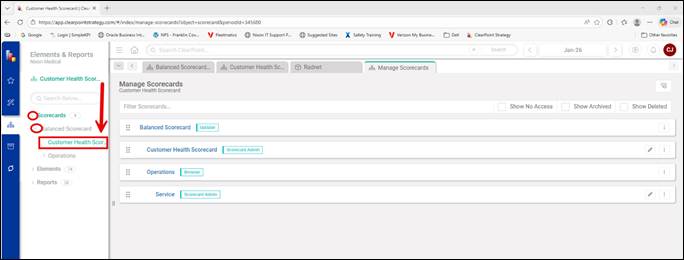
- In the left navigation, click the dropdown arrow (>) next to Scorecards.
- Click the dropdown arrow (>) next to Balanced Scorecard.
- Click Customer Health Scorecard.
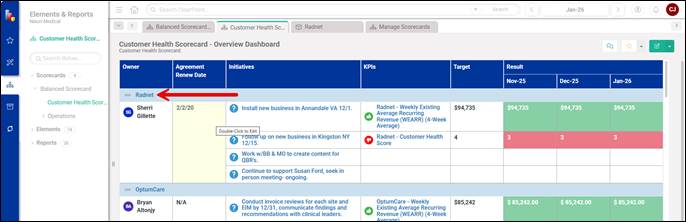
- Scroll down and click on your assigned Health System.
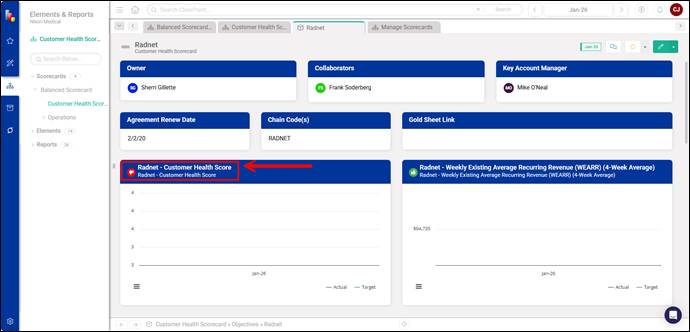
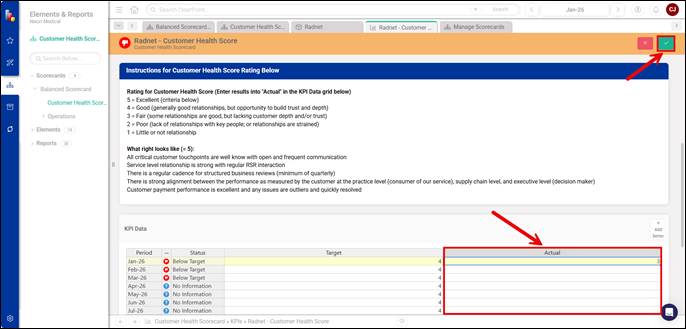
- Click on Health System - Customer Health Score in the royal blue header to open the metric.
- Using the Instructions for Customer Health Score Rating, enter the customer health score in the KPI Data section at the bottom under the Actual column.
- Click Save, then close/exit out of that tab.
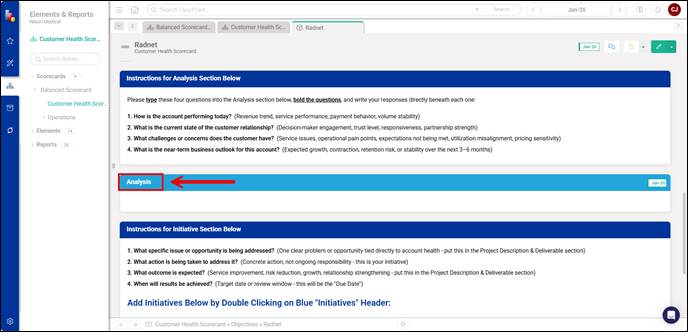
- Back on the main Health System page, scroll to the Analysis section and double-click the Analysis (bright blue) header.
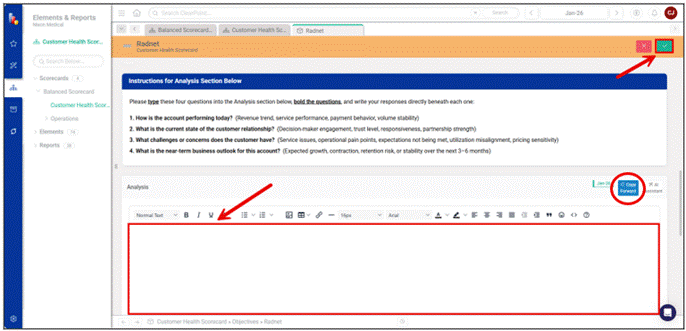
- Type and answer the four Analysis questions using the Instructions for Analysis Section, then click Save.
Note: You will only have to type these questions one time. After that, you can utilize the “Copy Forward” option (circled below) and just update the answers to the questions.
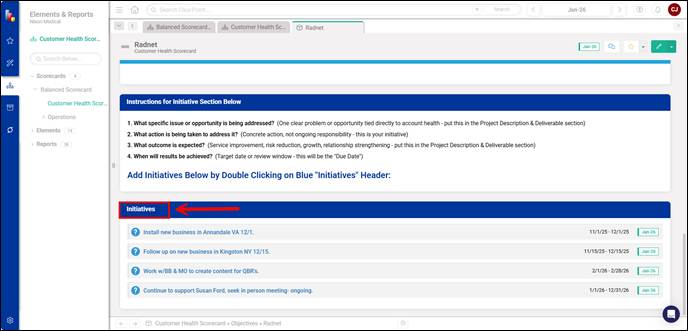
- Back on the main Health System page, scroll to the Initiatives section and double-click the Initiatives (royal blue) header.
- Click Add Initiative.
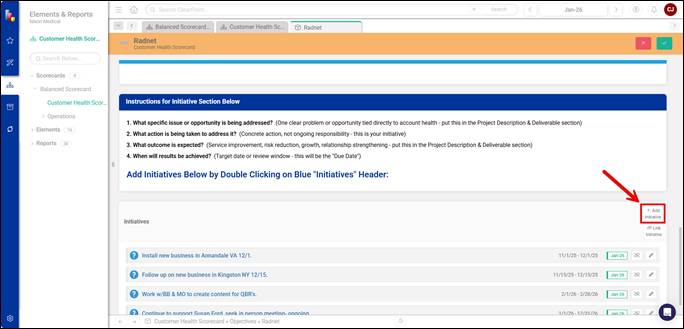
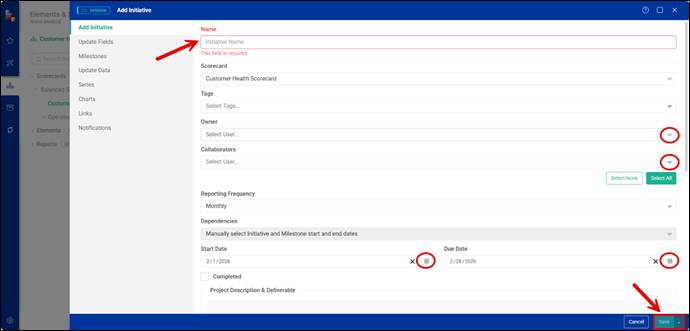
- Using the Instructions for Initiative Section, give the initiative a detailed name and complete the Owner, Collaborators, and the Start & Due Dates sections.
Note: You do not need to complete the Project Description & Deliverable and Outcome of Initiative in this section.
- Click Save
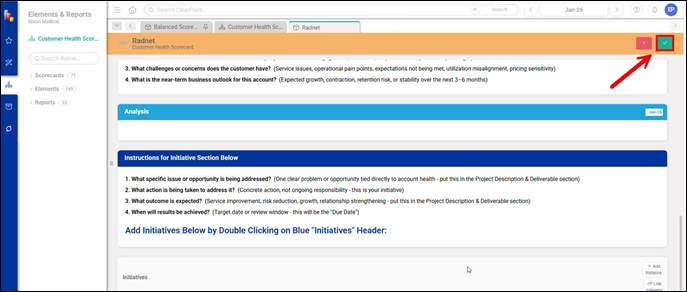
- Click Save again on the main Health System screen as well
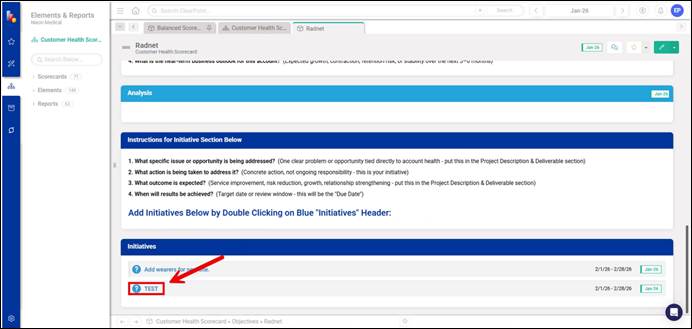
- Single click the new Initiative you just added to open it
- Double-click the Project Description & Deliverable (Review the Instructions prior and use as a guide from the main Health System screen — do not format as Q&A).
- Click Save
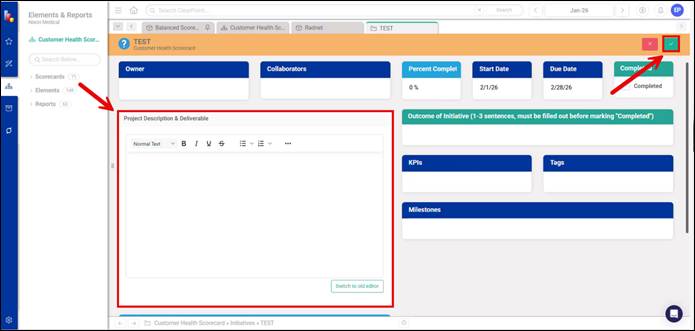
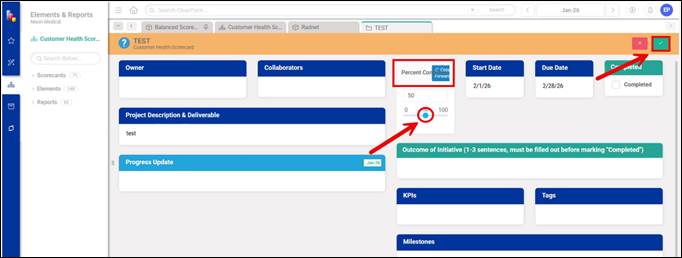
- Continue updating the Project Description & Deliverable and the Percent Complete each month until the project reaches 100% completion.
Note: To update the Percent Complete, double-click the header and slide the indicator to the appropriate percentage. The status indicator will reflect whether the project is on track or behind schedule based on the current pace relative to the completion date.
- Click Save.
- Once the Percent Complete reaches 100%, complete the Outcome of Initiative section (1–3 sentences required). After entering the outcome, click Save, then check the Completed box to mark the initiative as complete. The initiative will no longer appear in the list of active initiatives.
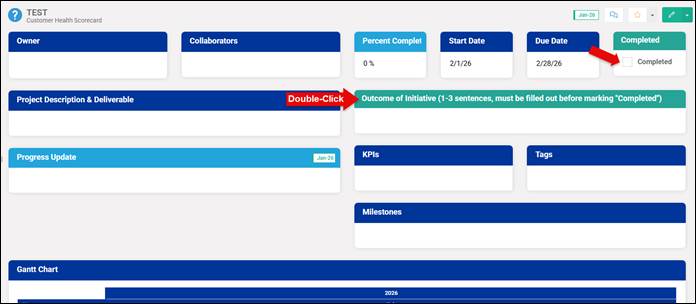
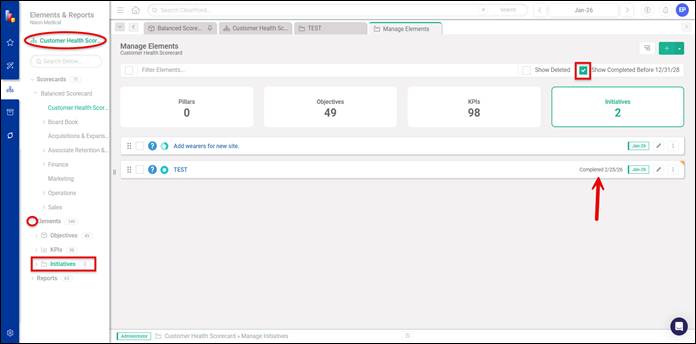
- To locate a completed initiative in the future, first confirm you are in the Customer Health Scorecard. Navigate to Elements, then click Initiatives. Check the box next to Show Completed Before 12/31/18 to display previously completed initiatives. Completed initiatives will be labeled “Completed” along with the completion date.