


 50
50
This article explains how to use the Voice Notes application in Visitation Assistant.
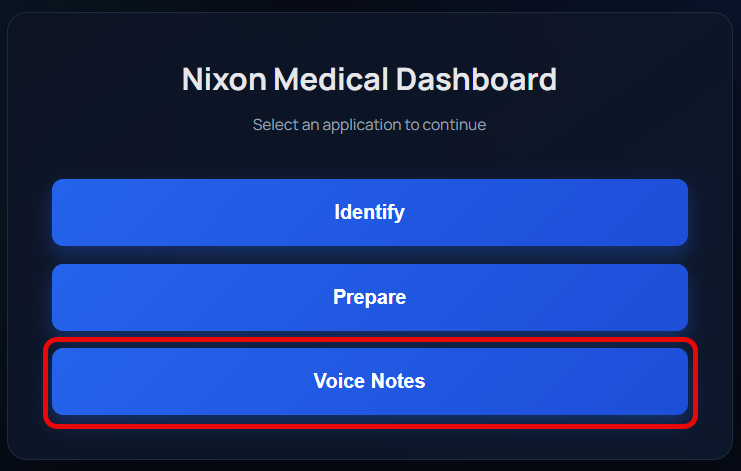
1. Start by navigating to Voice Notes from the dashboard.
2. Enter a customer number and then select Populate Customer Fields. This will validate a customer is selected.

3. Select the appropriate Contact Person for the account. The Primary Service contact and Service Delivery contact will be loaded (if captured in ABS).

4. Select the appropriate CSR Status in the drop down: Open, In Progress, Closed

5. Enter a Subject for the CSR note.

6. Click Start Recording to begin the voice note.

*YOU MAY NEED TO ALLOW MICROPHONE PERMISSIONS IF NOT PREVIOUSLY APPROVED - THIS IS REQUIRED FOR FUNCTIONALITY.
7. When you are done recording your note, select Stop Recording. You will see the play band appear at the bottom.

8. Click Save Note to start processing the voice note into a CSR. If you want to start over, select Reset to erase the recording.
9. You will see your job under Your Voice Notes history. Click Refresh to update the status.


* You do not have to wait for the job to process. Once SAVE VOICE NOTE is selected you are "done".
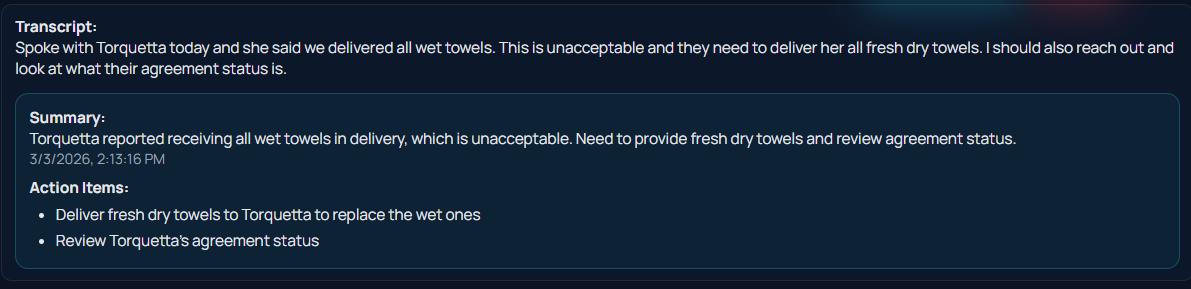
You can click View Transcript to see the transcript and the CSR-translated note. The Summary is what will be entered as a CSR note the following day.
If you do not want the CSR note created, select Delete.

