


 34
34
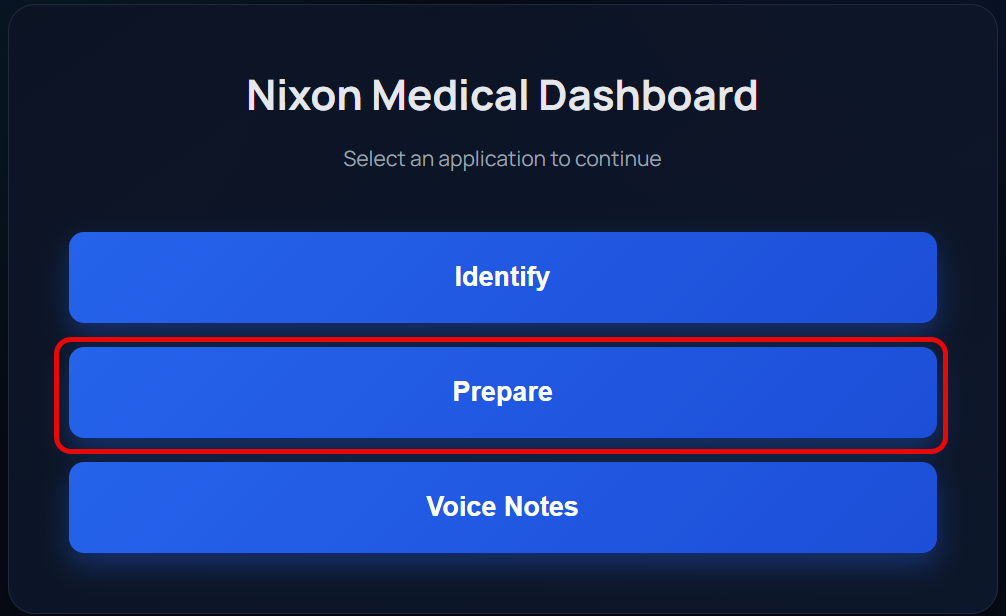
This article outlines the Prepare application within the Visitation Assistant.
1. You can start Prepare two ways:
a. Navigate directly to Prepare from the dashboard and enter a customer number
b. Start in Identify, select a customer and then View Preparation. This will transfer the customer number to Prepare.
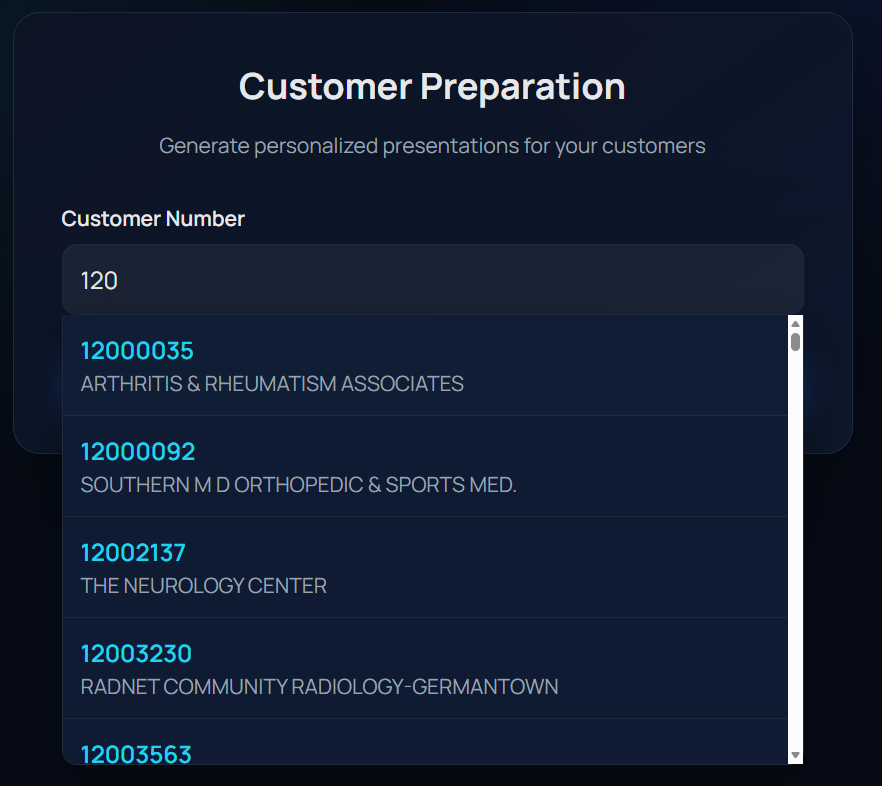
2. If you navigate to Prepare from the dashboard, allow 10-20s for the customer set to load, then type your customer number and click View Preparation Summary.

3. This next step takes 30s-60s to gather customer insights. Please be patient and allow the data to be displayed.
There are 5 keys insights evaluated for each customer. For each insight identified, a matching talking point will be displayed to help engage the customer effectively. If no insight is found, no talking point will be presented.
- Recent Customer Service Activity Summary
- This is a summary of the last 6 months of CSR notes for this account.
- Low IMU Percent Products
- These are products with under 20% utilitization.
- Changes in Garment Usage (turn-ins greather than 35% of circulating inventory)
- This displays opportunities to increase garment wearers due to turn-in.
- New Product Opportunities
- These are products identified via the Share of Wallet dataset, identifying products that the customer should be renting.
- Agreement Status
- The agreement status will be displayed, whether we have an active agreement or there is exposure.
There are also Standard Questions provided for every customer. These are reminders of topics you can engage with your customer.
3. Select Generate PowerPoint Presentation to generate a PowerPoint deck with starter slides. A slide will be created for Service contact information and another slide for Customer contact information. Use this as a starting point and add more content in preparation for a visit.


